Workflow Notes
This is the third and final piece of the measurement sidebar.
The first piece covered choosing a colorimeter. The second covered reading a measurement report. This one covers the practice itself: how a measured calibration session actually runs.
The details vary by software, TV brand, meter, pattern generator, and display technology. Calman, ColourSpace, HCFR, DisplayCAL, and other tools all present the workflow differently. LG, Sony, Samsung, Panasonic, projectors, monitors, OLEDs, LCDs, mini-LEDs, and QD-OLEDs all expose different controls.
But the logic is consistent.
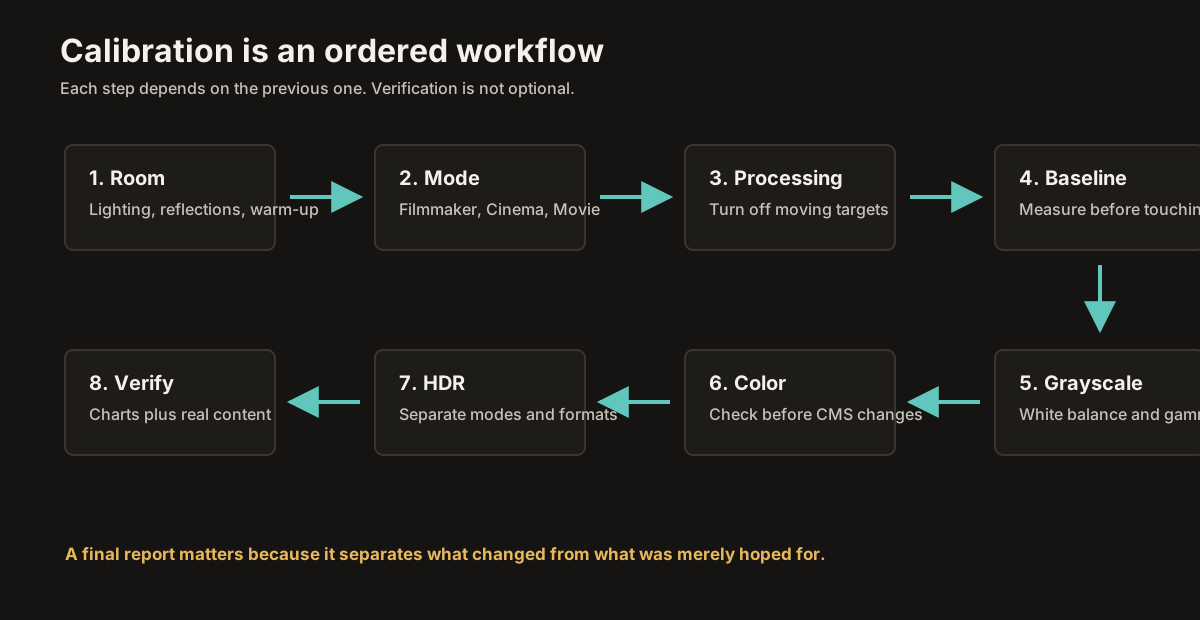
Measured calibration is not random menu adjustment with a meter attached. It has an order. Each step depends on the previous one. White balance comes before color management. SDR and HDR are measured separately. Verification happens after adjustment, not during wishful thinking. The goal is not to make every graph perfect at any cost. The goal is to move the display closer to the standard without creating new problems.
This piece is about that order.
The starting point
A measured calibration session should begin where the main calibration arc ended.
The room should already be controlled. The TV should already be in an accurate picture mode. The obvious processing should already be off. Black level and white level should already be set or at least checked. Color temperature should already be on the D65-targeting preset. SDR gamma should already be chosen for the room. HDR modes should already be understood.
That may sound redundant. After all, the meter can measure everything.
But measured calibration is refinement. It should not spend its first hour undoing Vivid mode, Eco dimming, motion smoothing, overscan, wrong HDMI range, or a blue-white Standard preset. Those are setup problems. Fix them before measurement.
The colorimeter is for the work the eye cannot do well: grayscale tracking, white balance, gamma or EOTF tracking, color error, CMS behavior, HDR tone mapping, and verification.
It is not a replacement for choosing the right mode and controlling the room.
Preparation
Before measuring, stabilize the system.
Warm up the display. Thirty minutes is a practical minimum. An hour is safer when accuracy matters, especially for bright displays, projectors, HDR work, or any display that visibly shifts as it warms.
Keep the room stable. No daylight drifting across the screen. No lamps turning on and off. No changing bias light. No sunlight through blinds. Measurement is only as stable as the environment.
Let the meter acclimate to the room. If the meter has been in a cold bag or a hot car, give it time to settle before trusting low-level readings.
Use the correct meter correction for the display technology. This is one of the easiest ways measured calibration can go wrong. A QD-OLED, WOLED, quantum-dot LCD, white-LED LCD, mini-LED LCD, and projector may require different corrections. If the correction is wrong, the meter can report precise numbers that are precisely wrong.
Confirm the signal path. The pattern source must output the signal the software thinks it is outputting. Check range, bit depth, RGB or YCbCr format, HDR metadata, refresh rate, and color management. A bad pattern path can ruin an otherwise careful calibration.
Confirm the picture mode. TVs often store settings separately by input, app, SDR, HDR10, Dolby Vision, and Game Mode. Make sure you are measuring the mode you intend to calibrate.
Disable interfering features. Dynamic contrast, eco dimming, automatic brightness, color enhancement, motion smoothing, AI picture modes, and ambient adaptive settings can all move the target while you measure it.
The best calibration workflow starts boring.
Stable display. Stable room. Stable meter. Stable signal. Stable mode.
Pre-calibration baseline
The first measurement should be a baseline.
Do not adjust anything yet.
Run a pre-calibration measurement sequence: grayscale, gamma or EOTF, color points, and whatever color-checker or saturation-sweep patterns your software uses.
This baseline does three things.
First, it tells you what needs work. Maybe grayscale is already excellent but gamma is off. Maybe D65 is close in the midtones but warm in the shadows. Maybe color is fine except for red. Maybe the TV's accurate mode is already good enough that only minor adjustment is warranted.
Second, it documents the starting point. A post-calibration report only means something if there is a pre-calibration report to compare against.
Third, it catches mistakes before you waste time. If the baseline is wildly wrong in a mode that should be accurate, stop. Do not start adjusting. Check the meter correction, range, picture mode, color space, pattern generator, HDR/SDR state, and meter placement.
A strange baseline is often a setup problem, not a display problem.
Measure first.
Then decide what work is actually needed.
Set luminance target
Before deep grayscale work, establish the basic luminance target for the mode you are calibrating.
For SDR, this usually means choosing a peak white level appropriate for the room. A dim-room SDR target may be around the traditional reference range. A brighter living-room mode may target a higher luminance. The exact number depends on the room, display, and intended use.
Use the panel light-output control for this: Backlight, OLED Light, Pixel Brightness, Panel Brightness, or whatever your TV calls it. Do not use Contrast as the main room-brightness control.
For SDR, set panel brightness to the desired light output, then confirm that Contrast preserves near-white detail without clipping.
For HDR, the logic changes. HDR should usually be measured with the TV allowed to use its HDR headroom. Peak Brightness or the HDR panel-light control is normally left at the appropriate high setting for that HDR mode unless the calibration workflow says otherwise.
Do not mix SDR and HDR habits.
SDR luminance is a chosen target.
HDR brightness is part of the HDR display capability and tone-mapping behavior.
White balance first
White balance comes before color management.
This is one of the most important workflow rules.
White is the reference everything else depends on. If the grayscale is too blue, too red, too green, or drifting across brightness levels, every color measurement is being judged against a faulty foundation. Adjusting the CMS before white balance is stable means you may have to redo the CMS after grayscale correction.
Start with grayscale.
The usual manual path begins with 2-point white balance.
The high-end controls may be called Gain, High, Drive, or White Balance High. They affect brighter grays and white.
The low-end controls may be called Bias, Offset, Low, Cutoff, or White Balance Low. They affect darker grays.
The software displays a patch, the meter reads it, and the RGB balance chart tells you which channels are high or low.
Adjust carefully.
Do not blindly raise channels to fix everything. Raising RGB controls can cause clipping, discoloration, or loss of headroom. Often the safer move is to reduce the excessive channel rather than raise the deficient ones. Green frequently carries much of the luminance, so large green changes can shift brightness more than expected.
Measure after each change.
Make small moves.
Let the chart guide you.
2-point white balance
A typical 2-point pass uses a high patch and a low patch.
The high patch may be 80%, 90%, or 100% stimulus depending on software and display behavior. The low patch may be 20% or 30%.
Adjust the high-end controls until the brighter gray is near D65.
Adjust the low-end controls until the darker gray is near D65.
Then recheck both.
The controls interact. Fixing the low end can nudge the high end. Fixing the high end can shift the middle. The goal is not perfection in two readings. The goal is to put the whole grayscale close enough that multipoint correction, if used, has less to do.
If the 2-point controls get the grayscale close, stop and measure the full sweep again.
Sometimes 2-point is enough.
Do not use more controls just because they exist.
Multipoint white balance
If the grayscale still drifts after 2-point correction, multipoint controls can refine it.
These may be called 10-point, 11-point, 20-point, 22-point, grayscale adjustment, or white balance detail. They let you adjust specific brightness levels across the grayscale.
This is where measurement is essential.
A multipoint control labeled "30%" may not affect only 30%. It may influence neighboring points. The TV's internal mapping may not align perfectly with the software's patches. Some controls can create banding or discontinuities if pushed too hard.
The workflow is iterative.
Measure the full grayscale.
Find the worst points.
Adjust one point modestly.
Measure again.
Check neighboring points.
Repeat.
The endpoint is not mathematically perfect RGB lines at all costs. The endpoint is low visible error, smooth tracking, and no new artifacts.
A calibration that produces beautiful numbers but adds posterization, tint transitions, or crushed near-black detail is not a good calibration.
Gamma and SDR EOTF tracking
Gamma is usually addressed alongside grayscale because the same measurement sweep reveals both RGB balance and luminance tracking.
The grayscale chart tells you whether gray is neutral.
The gamma chart tells you whether each gray is the correct brightness.
For SDR, the target might be 2.2, 2.4, or BT.1886 depending on the room and use case.
If the measured luminance is too high at a point, that part of the image is too bright relative to target.
If the measured luminance is too low, that part of the image is too dark.
Some TVs expose separate gamma controls. Some include luminance adjustment inside multipoint white balance. Some have only preset gamma choices. Some offer no fine control at all.
Use what the TV gives you, but do not overwork it.
For SDR, the goal is a smooth curve that follows the chosen target. Small deviations are usually less important than smoothness. A slightly imperfect but smooth gamma curve often looks better than a jagged one created by aggressive multipoint correction.
For BT.1886, remember that the target depends on the display's black and white levels. It is not always identical to pure 2.4.
Gamma is not a single number once you start measuring.
It is a curve.
Color management after grayscale
Only after white balance and SDR gamma are in good shape should you move to color management.
The CMS may offer hue, saturation, and luminance controls for red, green, blue, cyan, magenta, and yellow. Some TVs offer more points. Some offer fewer. Some CMS controls work well. Some are crude. Some introduce more problems than they solve.
Measure before touching anything.
Look at the color dE values. Look at the CIE chart. Look at saturation sweeps if available. Look at luminance errors as well as hue and saturation.
Then decide whether CMS adjustment is even worth doing.
Many modern accurate picture modes already have good color decoding. In those cases, CMS work may produce tiny numerical improvements but little visible gain. Worse, an overactive CMS can improve the six primary/secondary points while damaging intermediate colors.
Manual CMS workflow
If CMS adjustment is needed, work slowly.
Start with the largest meaningful error, not the color you personally notice first.
Adjust hue if the point is rotated around the gamut.
Adjust saturation if it is too far inward or outward.
Adjust luminance if it is too bright or too dim.
Measure after each adjustment.
Then measure neighboring colors and saturation sweeps.
The secondaries depend on the primaries. Cyan is influenced by green and blue. Magenta is influenced by red and blue. Yellow is influenced by red and green. A correction to one color can move others.
This is why CMS work is more fragile than it looks.
The goal is balanced improvement across real color behavior, not forcing one marker onto one target while the rest of the color system gets worse.
If the display cannot reach a target color because of hardware limits, accept the limit. Do not push controls into distortion trying to make the impossible happen.
Calibration corrects behavior within capability.
It does not create capability.
Saturation sweeps and ColorChecker
A six-point CMS check is useful, but it is not the whole story.
Real content contains many partially saturated colors. Skin, sky, grass, wood, fabric, food, and interior light rarely sit exactly at 100% red, green, blue, cyan, magenta, or yellow.
That is why saturation sweeps and ColorChecker-style patches matter.
A saturation sweep checks colors at multiple saturation levels, such as 25%, 50%, 75%, and 100%.
A ColorChecker-style set checks memory colors and natural colors.
After CMS adjustment, verify these. A calibration that improves 100% red but worsens skin tones is not a good trade. A TV that nails the gamut corners but bends saturation tracking may still show visible errors in real content.
Use the broader checks as reality tests.
The display should measure better across the picture, not only at the six obvious points.
Autocalibration
AutoCal can be useful, but it needs careful framing.
It is not magic.
It is not the same on every TV.
It does not always mean a full internal 3D LUT.
It does not remove the need for a correct meter, correction profile, pattern source, target selection, or verification.
AutoCal means the software communicates with the display and adjusts supported controls automatically. What those controls are depends on the TV, brand, model year, software, license, and picture mode.
On some compatible LG TVs, workflows may use 1D and 3D LUT calibration for SDR, HDR10, and Dolby Vision modes.
On compatible Samsung TVs, AutoCal may work over the local network for SDR and HDR workflows.
On compatible Sony BRAVIA TVs, workflows may adjust multipoint grayscale/luminance and built-in CMS controls through the supported app/control path.
Those are different capabilities.
Do not use one brand's AutoCal behavior to describe every brand's AutoCal behavior.
The value of AutoCal
AutoCal can save time.
It can reduce manual iteration.
It can access controls more efficiently than the user menu.
It can produce repeatable workflows.
It can write corrections to internal calibration slots on supported displays.
It can make home measurement more approachable.
But it can also fail if the setup is wrong.
Wrong meter correction?
Bad pattern source?
Incorrect range?
Wrong picture mode?
Unstable display?
HDR metadata not active?
Local dimming behaving differently during patterns?
AutoCal will still calculate something. It may even generate a neat report. That does not guarantee the result is right.
Always verify AutoCal results.
Run a post-calibration measurement.
Check real content.
Make sure the calibration improved the picture and did not simply produce better-looking charts.
Manual versus AutoCal
Manual calibration teaches control behavior.
AutoCal saves time and may reach deeper controls.
Both are legitimate.
Manual calibration is useful when:
Your TV does not support AutoCal.
You use free tools such as HCFR.
You want to understand what each control does.
You only need minor 2-point or gamma correction.
The TV's manual controls are well behaved.
AutoCal is useful when:
Your TV supports it properly.
The software license and meter are compatible.
The workflow includes the formats you care about.
You want repeatable calibration across SDR, HDR, or Dolby Vision.
You are comfortable verifying the result.
Neither path is automatically better in every situation.
The better path is the one that is supported, understood, verified, and appropriate for the display.
3D LUT workflows
A 3D LUT is a deeper form of color correction.
Instead of adjusting only grayscale points and six color axes, a 3D LUT maps color behavior across a three-dimensional color space. It can correct many combinations of hue, saturation, and luminance at once.
This is powerful.
It is also dependent on the display chain.
Some TVs support internal LUT calibration in certain modes. Some monitors do. Some projectors do. Some workflows use an external LUT box, video processor, computer output path, or software player. Some consumer TVs do not expose internal 3D LUT capability at all.
A typical 3D LUT workflow is:
Set the display to a clean baseline.
Disable unnecessary internal processing.
Set black and white clipping.
Set basic luminance and grayscale as needed.
Profile the display with many measured patches.
Generate a LUT against the target color space.
Apply the LUT.
Verify with a second measurement pass.
This can produce excellent results, especially on professional displays and controlled playback chains. But it is not always the practical path for a normal living-room TV used with streaming apps, game consoles, cable boxes, and disc players.
A 3D LUT only helps the signal path it is applied to.
If it lives in a computer or external processor, it may not affect the TV's built-in apps. If it lives inside a supported TV mode, it may apply only to that mode or format.
Understand where the correction lives.
That determines what it actually calibrates.
HDR calibration
HDR calibration is separate from SDR calibration.
It needs HDR patterns, HDR metadata, HDR modes, HDR targets, and an HDR-capable measurement workflow.
Do not measure SDR and assume HDR is done.
HDR uses PQ or HLG rather than SDR gamma. HDR tone mapping is part of the behavior being measured. The TV may track PQ accurately up to a point, then roll off highlights. That rolloff may be correct for the display's capability. The chart must be interpreted differently from SDR gamma.
HDR white balance still targets D65.
HDR EOTF tracking replaces SDR gamma tracking.
HDR color measurements often use P3 within a Rec. 2020 container, Rec. 2020 reporting, color volume, and HDR-specific error metrics.
HDR peak brightness depends on window size, panel technology, local dimming, ABL behavior, and tone mapping.
This is more complex than SDR.
In many HDR workflows, the user can verify tone mapping but not fully reshape it. The adjustable choices may be picture mode, peak brightness, dynamic tone mapping, HDR optimizer, Dolby Vision mode, HGiG, or manufacturer-specific tone-mapping settings.
Do not expect HDR calibration to behave like SDR calibration with brighter patches.
It is a different system.
Dolby Vision and HDR10+
Dolby Vision and HDR10+ add another layer.
They use dynamic metadata. Dolby Vision in particular may have dedicated picture modes and dedicated workflows, depending on the TV and calibration software. Some TVs allow Dolby Vision calibration. Some workflows generate configuration files or use special patterns. Some rely on the TV's Dolby Vision engine and only verify behavior.
Do not assume calibrating HDR10 automatically calibrates Dolby Vision.
Do not assume Dolby Vision Dark and Dolby Vision Bright share all settings.
Do not assume streaming-app Dolby Vision behaves exactly like an external pattern generator unless the workflow is designed for it.
The practical rule is:
Calibrate and verify each format you care about separately when the tools allow it.
At minimum, check that each format uses the right picture mode and sensible settings.
Game HDR and HGiG
HDR gaming should be treated separately too.
Game Mode usually has a different processing path, different tone mapping, different latency behavior, and sometimes different calibration controls.
If you use HGiG, configure it intentionally.
Enable the TV's HGiG mode or equivalent.
Run the console HDR calibration after HGiG is active.
Then use in-game HDR calibration when available.
Do not calibrate the console with dynamic tone mapping on if you intend to use HGiG. The TV may move the clipping target while the console calibration screen is asking you to identify it.
For games, measured accuracy and playability both matter.
Low input lag is part of the setup.
Verification and post-calibration report
After adjustment comes verification.
Run a post-calibration measurement sequence. It should measure the same core areas as the baseline: grayscale, gamma or EOTF, color points, saturation sweeps, ColorChecker patches, and HDR behavior if applicable.
Compare pre and post.
Did grayscale improve?
Did gamma or EOTF track better?
Did color dE drop?
Did outliers improve?
Did any new outliers appear?
Did CMS adjustment improve real color behavior, or only the six obvious points?
Did HDR tone mapping behave as expected?
Did AutoCal actually help?
Save the report.
The report is documentation. It tells you where the display landed at this moment, with this firmware, this panel age, this meter, this correction, this picture mode, and this room.
It is useful later when the display drifts, after firmware updates, after panel replacement, or when you want to compare modes.
A calibration without a verification report is unfinished.
Real-content verification
Numbers are necessary.
They are not the final step.
After the report looks good, watch real content.
Use familiar, high-quality material. Check skin tones, shadows, highlights, motion, color saturation, HDR impact, gradients, and stability. Confirm that the picture matches the numbers.
Sometimes measurements look good and the picture still feels wrong. That usually means something outside the measurement run needs attention: source chain, room light, local dimming behavior on real content, motion settings, app behavior, compression, or a mode that changed after the software disconnected.
Sometimes the picture looks good and the numbers show a tiny remaining error. That may be fine. Do not chase perfection past the point of visible improvement.
Calibration is successful when the measurements and the viewing experience agree.
What to expect
Measured calibration takes time.
A careful first SDR session can take a few hours. HDR adds time. Dolby Vision, Game HDR, projectors, 3D LUTs, and multiple picture modes add more. Learning the software adds more again.
The first session is usually slow because you are learning the workflow, the controls, the meter, the software, and the display's behavior at the same time.
The second session is faster.
The tenth is faster still.
The improvement over by-eye calibration is real, but it is not the same size as the jump from Vivid mode to a properly configured accurate mode. The biggest visible gains came earlier: correct mode, correct room, processing off, black level, white level, D65, gamma, and HDR mode selection.
Measurement refines the remaining errors.
It can improve grayscale neutrality, skin tone consistency, shadow tint, gamma tracking, and color accuracy. It can document that the display is close to standard. It can reveal issues you could not see clearly by eye.
But it may not transform a good modern TV in Filmmaker Mode into something unrecognizable.
That is not a failure.
It means the main setup already did its job.
When to stop
Knowing when to stop is part of calibration skill.
Stop when the remaining errors are below visible thresholds.
Stop when further adjustment makes one chart better and another worse.
Stop when the controls become unstable or nonlinear.
Stop when CMS changes improve one color but harm saturation sweeps.
Stop when HDR tone mapping is a display limitation rather than a user-adjustable error.
Stop when real content looks right and the report is clean enough.
Do not chase a perfect graph if the picture gets worse.
Do not turn calibration into graph decoration.
The display is for watching.
The report is evidence, not the artwork.
Common workflow mistakes
The most common mistakes are predictable.
Using the wrong meter correction.
Measuring before the display is warmed up.
Leaving Eco Mode or dynamic contrast enabled.
Measuring the wrong picture mode.
Measuring SDR while thinking HDR is active.
Measuring HDR without proper metadata.
Using a computer pattern source with wrong range or color management.
Adjusting CMS before white balance.
Overusing multipoint controls.
Chasing low dE at the expense of smoothness.
Copying another person's settings.
Trusting AutoCal without verification.
Ignoring real content.
Skipping the pre-calibration report.
Skipping the post-calibration report.
Trying to fix hardware limits with calibration controls.
Avoid those, and the workflow becomes much more reliable.
A practical measured-calibration order
Here is the clean version.
Prepare the room.
Warm up the display.
Confirm meter correction.
Confirm pattern source and signal path.
Choose the picture mode and format.
Disable interfering processing.
Set SDR luminance target if calibrating SDR.
Confirm black and white clipping.
Run a pre-calibration report.
Adjust 2-point white balance.
Measure full grayscale.
Use multipoint white balance only if needed.
Adjust SDR gamma or EOTF tracking where the TV allows.
Re-measure grayscale and gamma.
Measure color points and saturation sweeps.
Adjust CMS only if needed and only with measurement.
Verify broader color behavior.
For HDR, repeat with HDR-specific patterns, metadata, modes, and EOTF targets.
For Dolby Vision, use a Dolby Vision-specific workflow if supported.
For gaming, calibrate Game Mode and HGiG separately.
Run a post-calibration report.
Save the report.
Verify with real content.
That is the workflow.
Everything else is software-specific detail.
The end of the sidebar
This closes the measurement sidebar.
The three pieces now form a complete optional path beyond by-eye calibration.
Choosing a colorimeter explains the instrument.
Reading a measurement report explains the numbers.
Workflow Notes explains the process.
Together, they show what measured calibration adds: precision, repeatability, documentation, and access to controls the eye cannot use reliably.
But the broader message remains the same as the main arc.
Measurement is refinement, not permission.
A careful by-eye setup is real. A measured calibration is a deeper pass. Both are valid. The right choice depends on the display, the viewer, the use case, the budget, and whether the process itself appeals to you.
The important thing is understanding the chain.
The content was mastered to standards. The display tries to reproduce those standards. The room changes what your eyes receive. The TV's settings decide whether the signal is preserved or altered. The meter tells you how close the display came. The workflow gives you a way to close the remaining gap.
At the end, the goal is still not the report.
The goal is the picture.
A display set up well enough that the TV stops imposing itself, the room stops fighting it, and the work on screen can arrive as intended.
That was the point of the main arc.
That is the point of measured calibration too.
Next: Resources Reference material, available from anywhere on the site.