Black level also interacts with SDR gamma, so it belongs inside a measured calibration workflow rather than being adjusted in isolation.
Black Level
Watch a dark scene.
A nighttime street. An underground tunnel. A candlelit room. The opening shot of a horror film.
On a TV with black level set correctly, the shadows still have shape. You can tell where the walls are. You can see that a figure is moving in the dark. A black coat still has folds. A dim room still has depth.
On a TV with black level set wrong, one of two things happens.
Either the shadows collapse into solid black, swallowing detail that should be visible, or the whole dark end of the picture lifts into gray, making the image look flat and washed out.
Both failures come from the same part of the system being wrong in opposite directions.
This piece is about black level: what it means, why the setting is confusingly called Brightness, how HDMI range mismatches create most black-level disasters, and how to set the control correctly by eye in a few minutes.
What black level means
Every video signal has a defined point that means black.
For normal SDR video using limited range, black is not stored at digital 0. In 8-bit video, reference black is code value 16. Reference white is 235. Values below 16 are reserved for below-black information, sync/headroom behavior, or signal margin. Values above 235 are reserved for above-white headroom.
In 10-bit limited-range video, the equivalent black value is 64 and nominal white is 940.
That surprises people because computer graphics often use full range: 0 for black and 255 for white in 8-bit RGB. Video usually does not.
The display's job is to map the signal's black to the panel's black.
If the signal says "this is black," the TV should make that the darkest output the panel can produce. On an OLED, that may mean the pixel is effectively off. On an LCD, it means the darkest black the panel and backlight system can manage. Values just above black should produce tiny visible steps above that floor.
When this is correct, shadows have detail without looking gray.
When it is wrong, the picture breaks.
If black level is set too low, values just above black get pushed into black. Shadow detail disappears. This is called crushed blacks. Dark scenes look dramatic at first, but they are missing information.
If black level is set too high, black is lifted into gray. The whole picture loses contrast. Letterbox bars glow. Night scenes look milky. This is called raised blacks or elevated black level.
A correct black level does not make every dark thing visible.
Some things are supposed to be black.
The point is to make black black while keeping just-above-black detail visible.
Why the setting is called Brightness
The confusing part is the name.
On many TVs, the control that sets black level is called Brightness.
That sounds wrong because most viewers reasonably expect Brightness to control how bright the whole picture is. On a modern TV, that job usually belongs to settings such as Backlight, OLED Light, Panel Brightness, Pixel Brightness, or Peak Brightness. Those settings control the light output of the display.
Brightness, in the traditional TV sense, controls the floor.
It sets where black lands.
The name comes from older television controls, where Brightness and Contrast were paired knobs. Brightness adjusted the black level. Contrast adjusted the white level. That language survived into modern menus even though the display technology changed completely.
This is why turning up Brightness often makes a picture look worse.
You may think you are making the image brighter. What you are actually doing is raising the black floor. Whites may not get any brighter at all. Shadows simply turn gray, contrast weakens, and the picture loses depth.
For this article, whenever the TV menu says Brightness, read it as black level unless your particular TV uses a different naming scheme.
Brightness sets the floor.
Contrast sets the top.
Backlight or OLED Light sets the panel's overall light output.
Where black-level problems usually come from
Before touching the Brightness control, check something more basic:
HDMI range.
A large number of black-level problems are not caused by the Brightness setting at all. They are caused by the source and the TV disagreeing about whether the signal is limited range or full range.
Limited range is the normal video range. In 8-bit terms, black is 16 and white is 235. This is the usual range for Blu-ray, UHD Blu-ray, streaming video, broadcast video, cable boxes, and most normal video playback.
Full range is the normal computer RGB range. In 8-bit terms, black is 0 and white is 255. This is common for PCs and monitors.
Both are valid.
The problem is mismatch.
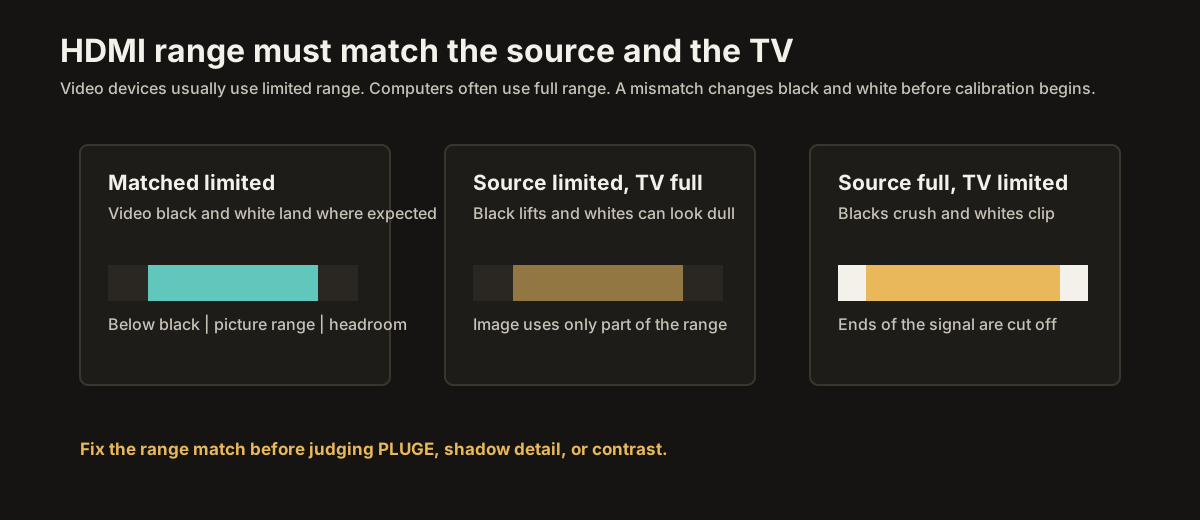
If the source sends limited range but the TV expects full range, the TV sees code 16 and thinks, "that is not black yet." So black becomes gray. Whites may also fail to reach full white. The whole picture looks flat and washed out.
If the source sends full range but the TV expects limited range, the TV treats values below 16 as below black and values above 235 as above white. Shadows crush. Highlights clip. The picture looks overly contrasty, with missing detail at both ends.
This looks like bad calibration.
It is actually a language problem.
The source and the display are using different definitions of black and white.
Matching limited and full range
For video devices, Limited or Auto is usually the right answer.
That includes streaming boxes, Blu-ray players, cable boxes, and most TV-focused sources. The TV input should also be set to Auto, Limited, Low, Video Range, or whatever your manufacturer calls the matching limited-range mode.
For a PC used as a computer monitor, Full is usually the right answer, and the TV should be set to PC mode or Full RGB if that input supports it. This preserves desktop levels and text clarity.
For game consoles, either can work if both ends match. Limited-to-limited is correct. Full-to-full is correct. Full-to-limited or limited-to-full is wrong.
Do not assume Full is automatically better. It is not a quality setting. It is a range setting. A perfectly matched limited-range video signal does not have inferior blacks. It simply uses different code values for the same visible range.
Many devices have Auto settings that work correctly. Some combinations do not. If shadows are crushed or raised even before you adjust anything, check this first.
Look for settings with names like:
HDMI Black Level
RGB Range
Video Range
Black Level
Limited / Full
Low / High
Standard / PC RGB
Normal / Enhanced
Auto usually works, but when the picture is obviously wrong, set both ends manually to match.
For normal video sources, use Limited on the source and Limited or Low on the TV.
For PC monitor use, use Full on the source and Full or High on the TV.
Do not try to fix a range mismatch with the Brightness slider. You may make one part of the image look less wrong, but the signal mapping is still broken.
Fix the handshake first.
Then set black level.
Setting black level by eye
Once HDMI range is correct, black level is set with a test pattern.
The standard pattern is called PLUGE, which stands for Picture Line-Up Generation Equipment.
A PLUGE pattern shows near-black bars or patches against a black background. The exact layout varies, but the idea is always the same. It includes at least three important levels:
Blacker than black.
Reference black.
Just above black.
With the Brightness control set correctly, blacker-than-black should be invisible. Reference black should also be invisible. Just-above-black should be barely visible.
That is the target.
The setup matters. Dim the room. Let your eyes adjust. Use the picture mode you actually plan to watch. Turn off dynamic contrast, black enhancers, and automatic brightness features before judging the pattern.
Then adjust the Brightness control slowly.
If you cannot see the just-above-black patch at all, Brightness is too low. Raise it until the just-above-black patch appears.
If you can see the reference-black patch or the below-black patch, Brightness is too high. Lower it until those disappear into the background.
The correct point is where black and below-black are gone, but just-above-black is barely visible.
Barely is the key word.
The above-black patch should not glow. It should not jump out. You should be able to detect it only with attention in a dim room.
That is where shadow detail begins.
Why this works
A PLUGE pattern is not magic. It is simply a controlled way of finding the threshold between black and near-black.
Real content has information near that threshold. A dark coat, a wall in a night scene, a face in shadow, the folds of a curtain - these details often live just above reference black.
If Brightness is too low, those values fall into the panel's black floor and disappear.
If Brightness is too high, those values become too visible and the surrounding black rises with them. The picture loses weight.
The correct setting lets real shadow detail survive without turning black into gray.
That is the balance.
Black should be black.
Near-black should be near-black.
Where to find PLUGE patterns
You need a reliable test pattern from the same kind of source you actually watch.
A UHD Blu-ray calibration disc is a good option. Spears & Munsil is a common modern reference and includes excellent SDR and HDR patterns.
AVS HD 709 is an older but useful free SDR pattern set that can be played from disc, USB, or a media player.
Some professional calibration pattern generators and apps include PLUGE patterns.
Some YouTube test patterns can help, but YouTube is not ideal for serious calibration because compression, app behavior, range handling, and device output can alter the signal. A trusted YouTube pattern is better than guessing, but a local file or disc is better.
Use an SDR PLUGE pattern for SDR black level.
HDR is more complicated. HDR uses a different transfer function, and PQ near-black behavior interacts with the TV's HDR mode, tone mapping, panel characteristics, and sometimes manufacturer processing. Many TVs handle HDR black level correctly by default once SDR and HDMI range are correct. If you use HDR PLUGE patterns, use patterns made specifically for HDR and play them through a proper HDR path.
Do not use an SDR pattern while the TV is in HDR mode.
Do not use an HDR pattern while judging SDR.
Each mode has its own signal path.
HDR near-black
The original idea is the same in HDR: black should map to the display's black, and just-above-black detail should remain visible.
But the coding details are different.
PQ HDR maps normalized signal values to absolute luminance. In the PQ curve, the bottom of the range corresponds to zero light and the top of the curve corresponds to 10,000 nits. But in real video transport, the digital code values may still be carried in limited-range form. So it is safer to think in terms of "reference black and near-black values in the HDR signal," not simply "code value 0."
HLG is different again because it is not the same absolute PQ system.
The practical advice is simple:
Set HDMI range correctly.
Set SDR black level with an SDR PLUGE pattern.
Leave HDR black level alone unless you have a proper HDR pattern and a reason to adjust it.
If HDR shadows look wrong, first check picture mode, HDMI range, dynamic contrast, black enhancer settings, tone mapping, and the source device. Do not assume the Brightness slider is the first answer.
On many TVs, SDR and HDR store separate picture settings. A Brightness or black-level adjustment in SDR may not carry over to HDR, and it should not necessarily be copied manually.
What correct black level looks like
Correct black level is not always obvious in bright, colorful scenes.
It reveals itself in dark content.
A dark room should still feel like a room. You may not see everything, but you should see enough to understand space and form.
A black coat should not become a single flat shape unless it was photographed that way.
A nighttime sky should not glow gray unless the scene is lit that way or the display's black floor is being exposed.
Letterbox bars should be as black as the display can make them. On an OLED in a dark room, they should effectively disappear. On an LCD, they may be limited by the panel and local dimming system, but they should not be lifted by the Brightness control.
Deep shadows should have weight.
Near shadows should have texture.
The image should feel dark where it is meant to be dark, not broken.
If the picture looks washed out after adjustment
First, check the room.
Ambient light reflecting off the screen raises black level. Even an OLED cannot look perfectly black if a lamp or window is bouncing off the panel. Calibration cannot fix reflected light. That is a room problem.
Second, check HDMI range.
A limited/full mismatch is still the most common cause of raised blacks. If everything looks gray, do not keep lowering Brightness blindly. Make sure the source and TV agree.
Third, check processing.
Dynamic contrast, black-level enhancers, shadow detail controls, eco modes, and ambient-light features can alter near-black behavior. Turn them off for calibration.
Fourth, check the source.
Some streaming content is poorly mastered or heavily compressed. Some dark shows are simply graded very dark. Compression can make near-black areas blocky, noisy, or smeared. The TV cannot recover detail that is not in the stream.
If the picture still looks washed out on good content, in a dim room, with matched range and correct settings, then the display may simply have a limited black level. Many LCDs cannot produce deep black in a dark room without good local dimming. Projectors also have elevated blacks compared with emissive TVs.
That is a hardware limit, not a Brightness setting.
If the picture looks crushed after adjustment
Again, check range first.
Full-range source into a limited-range TV input will crush shadows. This is especially common with PCs and consoles when the TV input is not set correctly.
Then check black-enhancement settings.
Names vary, but features like Black Enhancer, Black Adjust, Shadow Enhancer, Dynamic Contrast, Contrast Enhancer, and some local contrast controls can crush near-black detail for the sake of deeper-looking blacks.
Turn them off.
Also check whether you are using the right picture mode. Vivid, Dynamic, Standard, and some Game presets may alter shadows aggressively. Start from Filmmaker, Movie, Cinema, Custom, or an accurate Game variant.
If only one movie or show looks crushed, it may be the content. Dark grading is sometimes intentional. A correct TV should not make every shadow easy to see. The goal is not maximum visibility. The goal is correct visibility.
The relationship to local dimming
Black level and local dimming are related, but they are not the same control.
On LCD TVs, local dimming controls the backlight zones behind the panel. It can make dark areas darker and bright areas brighter by changing backlight intensity zone by zone.
A good local dimming system improves perceived black level and contrast. Turning it off may make the whole image look gray. For HDR especially, local dimming is often essential.
But local dimming can also hide or reveal near-black detail depending on how aggressively it behaves. Some TVs dim zones so strongly that small shadow details disappear. Others keep zones lifted and make blacks look gray. This is not the same as the Brightness control, but it affects what you see near black.
For calibration, use the local dimming setting you plan to watch with. On many LCD TVs, that means Medium or High, depending on which one preserves detail best without blooming too much. On OLEDs, this does not apply in the same way because each pixel controls its own light.
Do not turn off local dimming just because it sounds like processing.
Do turn off black enhancers and contrast tricks that crush or lift the signal.
The quick procedure
Here is the practical version.
Choose an accurate picture mode: Filmmaker, Movie, Cinema, Custom, Professional, or an accurate Game mode for games.
Turn off dynamic contrast, black enhancers, eco dimming, and automatic picture adjustments.
Set HDMI range correctly. For video sources, Limited-to-Limited or Auto-to-Auto is usually right. For PC use, Full-to-Full is usually right.
Dim the room.
Display a proper SDR PLUGE pattern through the source you actually use.
Adjust the TV's Brightness control.
Lower Brightness if below-black or reference-black bars are visible.
Raise Brightness if the just-above-black bar is invisible.
Stop when just-above-black is barely visible and everything below black has disappeared.
Then watch real dark content.
Do not keep tweaking endlessly. Once the threshold is correct, leave it alone.
What not to do
Do not raise Brightness to make HDR look brighter. Use the proper HDR brightness, tone mapping, or panel brightness controls instead.
Do not lower Brightness to make an LCD look like an OLED. You will only crush shadow detail.
Do not force Full RGB because it sounds better. Match the source and display.
Do not use a bad YouTube pattern as final proof.
Do not adjust black level in a bright room and expect it to be correct for a dark room.
Do not use Vivid mode as a calibration base.
Do not judge black level from one badly compressed stream.
And do not confuse "I can see everything in the shadows" with "the shadows are correct."
Some darkness is supposed to be dark.
Where this leaves us
Black level sets the bottom of the picture.
It decides where the signal's black lands on the display and whether the first steps above black remain visible. Set it too low and the picture crushes. Set it too high and the picture washes out.
The confusing part is that the control is usually called Brightness, even though it does not control overall light output. The even more confusing part is that many black-level problems are not caused by Brightness at all, but by HDMI range mismatch.
So the order matters.
Match the range first.
Then use a PLUGE pattern.
Then adjust Brightness only enough to put the threshold in the right place.
When black level is right, dark scenes gain shape without turning gray. Shadows have texture. Letterbox bars stay black. Contrast feels solid. The image stops looking like the TV is either hiding things or fogging them over.
The next step is the opposite end of the tonal range: white level.
Black level sets the floor.
White level sets the ceiling.
Together, they define the usable range the rest of the picture lives inside.
Next: TV Contrast and Peak Brightness Explained Move from the black floor to the white ceiling: contrast, clipping, peak brightness, OLED ABL, and preserving highlight detail.